Showing posts with label Apps. Show all posts

Sunday, 18 January 2015

How to Set Up Your Sweet New iPad

How to Set Up Your Sweet New iPad

How to Set Up Your Sweet New iPad

Whoa! You got a new iPad for [insert religious/secular observance here]? That’s awesome! Have you set it up yet? No? Why not?

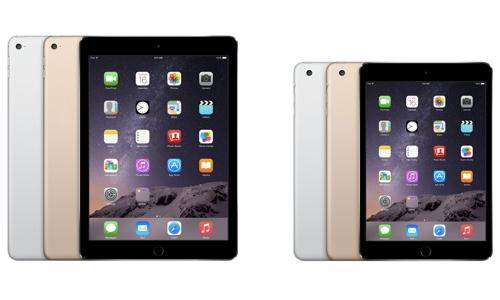
Oh, you need some help? No worries; that’s kind of our thing here. So go grab your iPad (Air or mini, it doesn’t matter) and let’s rock.

Getting started


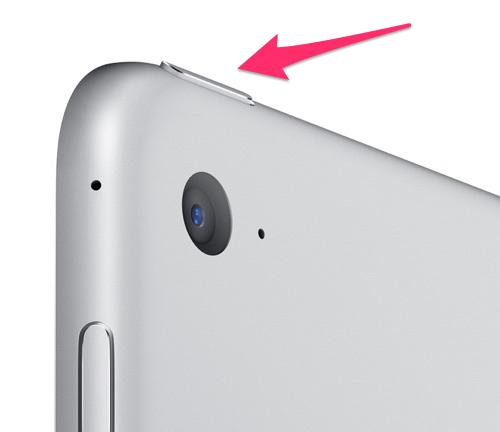
1. Power it up.Once you unwrap your iPad, and breathe in the wonderful scent of fresh electronics, the next thing you’ll want to do is to give your new best friend life. To do that, you’ll have to find the power button on the iPad’s top edge.

iPad power button


Hold the button down for a few seconds until the tablet’s screen lights up with the Apple logo. Don’t get too excited, though; we’ve still got a few more steps ahead of us before your iPad is ready to go.

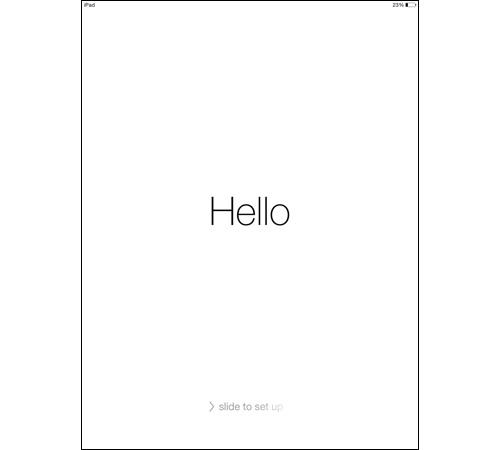
2. The setup.First things first: Let’s configure your iPad. When the onscreen Apple logo disappears, you’ll be greeted by a screen that says “Hello” in a variety of languages. Swipe from left to right, and we can get started.

iPad hello screen


On the next few pages, you’ll be asked to select your language and country. Next, you’ll want to select your Wi-Fi network.

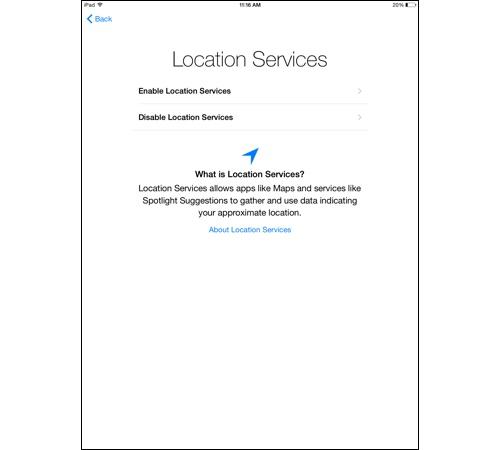
Up next, Location Services. If you’re going to be doing things like checking the weather in your area, or using Apple Maps, then Location Services is worth turning on. If not, keep it switched off, as it will put a serious drain on your iPad’s battery.

iPad location services setup screen


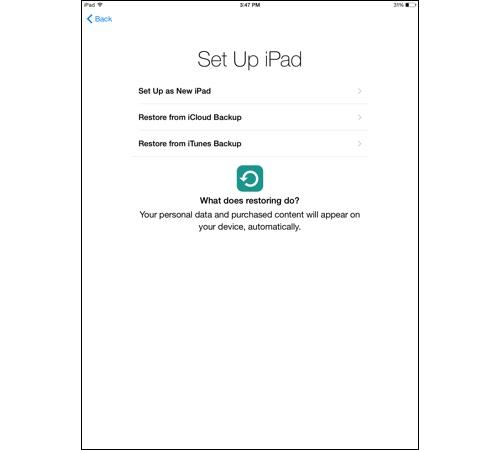
Next you’ll be asked if you want to set up your iPad as a new iPad, or if you want to restore it from an iCloud or iTunes backup. If this is your first iPad, then go with New iPad.

Set up iPad screen


If this is a replacement for an older iPad, then you can restore it with an iCloud or iTunes backup to automatically load all your previously purchased content and personal data onto your new iPad.

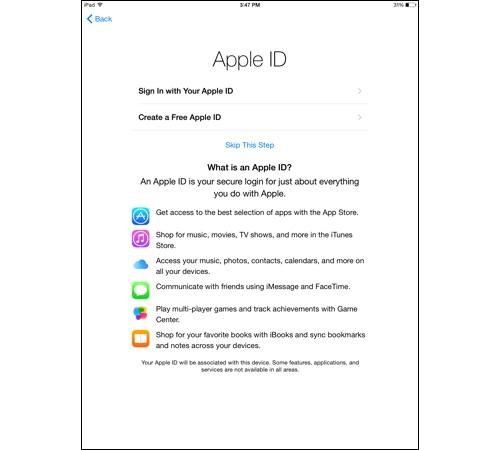
3. Using Apple ID.Let’s talk Apple ID. If you’ve used an Apple product before, chances are you already have one of these. It’s the username and password combination you use to purchase things from the iTunes and App stores. If you have one, just tap Sign In with Your Apple ID so you can use your existing account on your new iPad.

Apple ID setup screen


Don’t have an Apple ID? Then you’ll want to tap Create a Free Apple ID and follow the instructions on the following pages to make one.

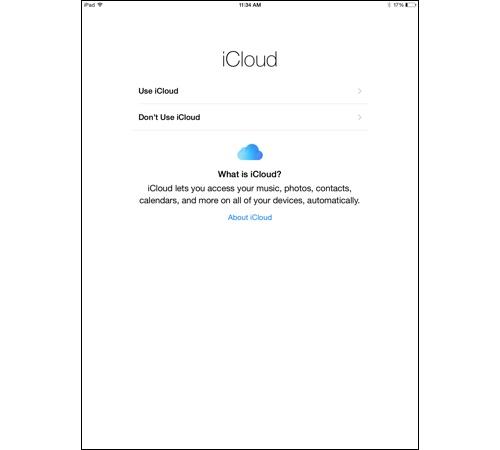
4. iCloud and Find My iPad.Next up, iCloud. Apple’s iCloud lets you save your photos, contacts, music, and other data to the cloud, so that it’s accessible on all your other Apple devices, as well as your Windows PC. Most people will want to enable this feature.

iCloud setup screen


When you enable iCloud, you also automatically turn on Apple’s Find My iPad feature, which can help you locate your tablet if you misplaced it or it’s stolen. If your iPad is pilfered, Find My iPad will also let you lock it and erase it remotely. You definitely want this turned on.

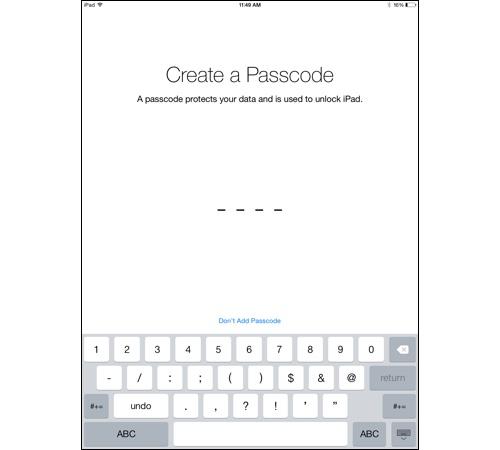
5. Securing your iPad.Passcode and Touch ID are up next. Both features provide you with a means to lock your iPad without anyone else getting in. Passcode is a simple four-digit code that you enter on the iPad’s lock screen to gain access to the slate.

Touch ID setup on the iPad


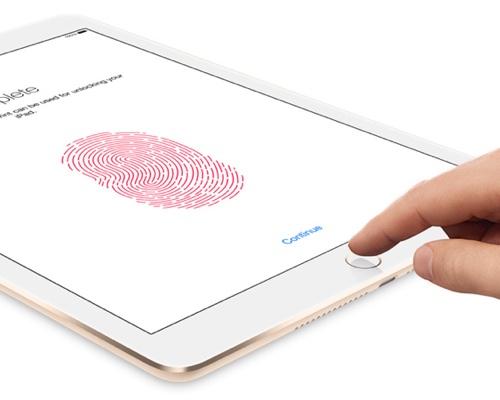
Touch ID is the fingerprint reader built into the iPad Air 2 and iPad mini 3’s Home buttons. But Touch ID isn’t just about locking down your tablet. It can also be used to make secure online purchases.

If you got an Air 2 or mini 3, you’ll definitely want to set up Touch ID. To do so, you’ll have to press the finger you want to register on the Home button multiple times at a variety of angles until the iPad is able to easily read it.

Don’t have an Air 2 or mini 3? Then set up a passcode to secure your iPad.

iPad Create a Passcode screen


The next few pages will ask if you want to use Apple’s Siri voice assistant and if you want to send diagnostic information about the iPad to Apple and analytics to app developers to help them improve their apps. Make your selections, and you’re all set to use your new iPad.

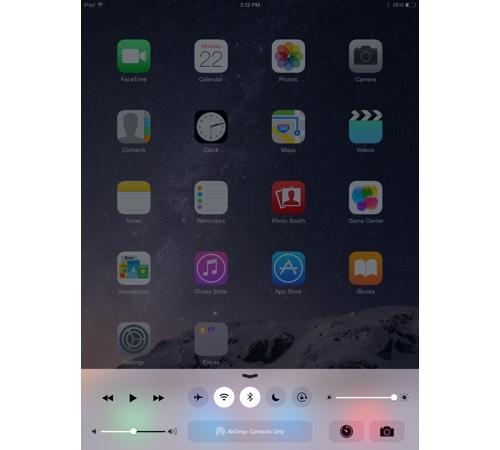
Some quick housekeepingOnce your iPad is ready to go, there are a few things you’ll want to know how to use. The first is the Control Center, which is accessible by swiping one finger up from the bottom of the screen toward the top.

From here, you can quickly toggle your iPad’s Bluetooth, Wi-Fi, Airplane mode, and Do Not Disturb mode. You can also adjust the screen brightness and volume, as well as control music playback and open the Camera app.

iPad home screen


If you’re worried about your iPad’s battery life, it’s important to remember that the brighter the screen, the more power it will use. What’s more, if you aren’t using Wi-Fi, Bluetooth, or Location settings, then it’s best to switch them off, as they will all leech your battery’s power. All of that can be accomplished from the Control Center.

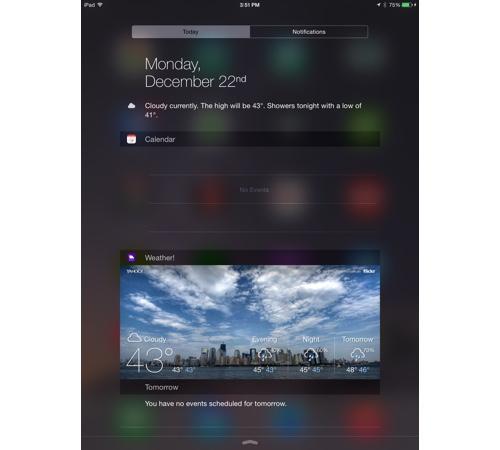
Beyond Control Center, you’ll also want to know how to use the Notifications Center. Accessible by swiping down from the top of the iPad’s home screen, Notifications Center is home to all your app notifications.

iPad Notification Center


From here you can see who’s been messaging you on Facebook and Twitter, as well as check the day’s schedule. And, with iOS 8, you can add app widgets to the Notifications Center that provide you with a snapshot of your favorite apps.

That’s about all you need to know to get started. Want to know more about your sweet new tablet? Check out our guide to iOS 8, and don’t forget to check out our favorite iPad apps for some suggestions on what to download.
Sunday, 4 January 2015

25 Essential Apps for Your New Android Phone


25 Essential Apps for Your New Android Phone

If you were lucky enough to receive your very first Android phone as a holiday present this year, you’ll want to do the following immediately:
First, give a big and sloppy kiss to the angel-winged genius that gifted it to you. Then get to downloading some apps!
Here are Yahoo Tech’s picks for the 25 Google Play store apps you’ll want to grab first for your new Android phone.
1. Gmail: Nope, the Gmail app doesn’t come preinstalled on Android devices. Start enjoying Google’s great email service on your new phone ASAP by making this one of the first apps you download.
image

DOWNLOAD IT HERE.
2. Twitter: Don’t let Wall Street’s reluctance to embrace Twitter stop you from downloading the service’s fantastic Android app. You won’t want to miss out on all the 140-character bursts of knowledge, humor, and news. Trust us.
DOWNLOAD IT HERE.
3. Instagram: It’s one of the most popular photo-sharing services out there. You’ll love the way your selfies look through Instagram’s selection of “retro” photo filters.
DOWNLOAD IT HERE.
4. Facebook: The social networking app for posts, pokes, and polemics is a great time-waster.
Facebook logo
DOWNLOAD IT HERE
5. Google Maps: Sure, Google Maps is great for exploring new neighborhoods … or countries. But even if you like to keep it local, this app is a must-have with its built-in Zagat ratings and live traffic information.
Google Maps logo

DOWNLOAD IT HERE.
6. Seamless/GrubHub: These apps take the “call-in” part out of getting great eats delivered to your home.
DOWNLOAD THEM HERE AND HERE.
7. Chrome: Google’s Chrome is the most popular Web browser in the U.S. The Android version will sync with all your Chrome desktop browsing history and bookmarks, too.
Chrome logo

DOWNLOAD IT HERE.
8. YouTube: The most popular video site on the planet. With this app on your phone, you won’t have to miss out on the latest and greatest music video or cute animal clip.
DOWNLOAD IT HERE.
9. Vine: Addictive looping six-second videos. Funny, cute stuff.
Vine logo
DOWNLOAD IT HERE.

10. Evernote: Create, save, and sync notes across all your mobile and desktop devices with the Evernote Android app.
DOWNLOAD IT HERE.
11. Square Cash: Probably the winner of the “Easiest Way to Send Money with Your Phone” award. It’s free, too.
Square Cash logo

DOWNLOAD IT HERE.
12. Google Drive: It’s the Android app for Google’s cloud storage service. Upload files from your phone or access others that have been uploaded from your computer or tablet devices.
Google Drive logo

DOWNLOAD IT HERE.
13. Facebook Messenger: Facebook has made it necessary to download a second app for sending and reading private Facebook messages on your phone. In other words, if you want to chat with your old high school classmates via your Android phone, you’ll have to get it.
DOWNLOAD IT HERE.
14. Spotify: The Android app for the best streaming music service around is a must. Stream virtually any song you can think of (aside from anything in the Taylor Swift discography) while you’re on the move.
Spotify logo

DOWNLOAD IT HERE.
15. Feedly: RIP Google Reader. Use this gorgeous RSS reader app instead to catch up on all your news in one place.
DOWNLOAD IT HERE.
16. Heads Up! You may recognize this Password-like game from The Ellen DeGeneres Show, but the Android app version is just as much fun.
image

DOWNLOAD IT HERE.
17. Amazon Kindle: Bring your Kindle ebook collection to your Android phone by simply installing this app and signing in.
DOWNLOAD IT HERE.
18. Yelp: Read and post ratings on this wildly popular business-rating service while on the go.
Yelp logo
DOWNLOAD IT HERE.
19. Foursquare/Swarm: These apps connect you to Foursquare’s popular social “check-in” service. Its new Swarm breakout makes it easier to see what your friends are up to.
DOWNLOAD THEM HERE AND HERE.
20. Google Hangouts: Google’s Hangouts lets Android owners text, send pictures, and video chat across other computer and mobile device platforms (even iPhones), and without a carrier texting plan.
Google Hangouts logo
DOWNLOAD IT HERE.
21. WhatsApp: WhatsApp has more users around the world than any other mobile texting app. Join the largest instant messaging party on the planet!
DOWNLOAD IT HERE.
22. Snapchat: The most popular way to send sneaky messages on Android, Snapchat is a staple. Get silly or get scandalous; just download this app.
Snapchat logo
DOWNLOAD IT HERE.
23. CamScanner: Pack that bulky, power-wasting scanner away and import documents painlessly using just this app and your Android phone’s camera.
DOWNLOAD IT HERE.
24. The Weather Channel: With The Weather Channel’s Android app, you can put customizable forecast widgets right on your phone’s home screen.
DOWNLOAD IT HERE.
25. RunKeeper: Strap your Android phone on and track all your walking, jogging or biking miles. Compare workouts with friends right from the app, too.
RunKeeper logo
DOWNLOAD IT HERE.

Monday, 30 April 2012

Killer Car Apps For 2013

Automakers are rolling out cutting-edge high-tech features and migrating last year’s hot new items more broadly across their model lines with increasing frequency these days. With the playing field being relatively level among most comparable models with regard to performance, comfort and quality, manufacturers are leveraging the latest technology to help their vehicles stand out in a crowded market and to help give motorists a reason to trade in their existing rides for the latest models.

Backup Collision Intervention

Infiniti takes the now commonplace backup camera to new levels of complexity in its 2013 JX35 luxury crossover SUV. First, an Around-View Monitor with Moving Object Detection shows both a 360-degree image of the area outside the vehicle and delivers visual and audible warnings if the system “sees” moving objects crossing within the front or rear views when pulling out of a parking space or backing up. A new Backup Collision Intervention System adds another layer of safety to the system with the ability to automatically engage the brakes to help avoid a collision with vehicles and objects crossing its path while in reverse gear the driver either can’t see or isn’t reacting to quickly enough
Killer Car Apps For 2013

The new Infiniti IPL G Convertible made its global debut today at the Los Angeles Auto Show. With its advanced VQ37HR 3.7-litre V6 engine, the 2013 IPL G Convertible will become the second model in the Infiniti Performance Line lineup when it goes on sale at Infiniti Canada retailers in spring 2012
Killer Car Apps For 2013